Maximise your Coredy robot's capabilities using the Coredy Robot App. Simply scan the QR code for a speedy download of the app or search for Coredy Robot in the App Store (for iOS devices) or in Google Play (for Android devices).

APP Guide
How to download the Coredy Robot App?
How to sign up for a Coredy Robot Account?
Please make sure you have downloaded and installed the Coredy Robot app on your smartphone.
1. Open the app and choose whether to allow Coredy Robot to send your notifications.

2. Agree to the “User Agreement and Privacy Policy".

3. Tap Sign Up to register your account.

4. Choose your location and enter your email address or mobile number.

5. Tap "Get Verification Code" and enter the verification code.

6. Create a password for your account.

7. Your Coredy Robot account registration is complete, and you can now add your Coredy robot.

How to add Coredy Bluetooth tracker to "Find My" app?
1. Power on your item finder and press the Function Button twice to prepare for connection. The finder will emit one beep to indicate it is ready to connect.
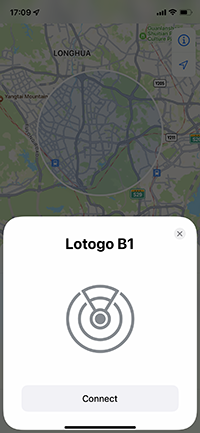
2. Hold your item finder near your iPhone or iPad, tap +, then tap Add Other Item. (If you have multiple Coredy item finders, make sure only one item finder is near your device at a time.)
3. Await for your item tracker to be found, then tap Connect.

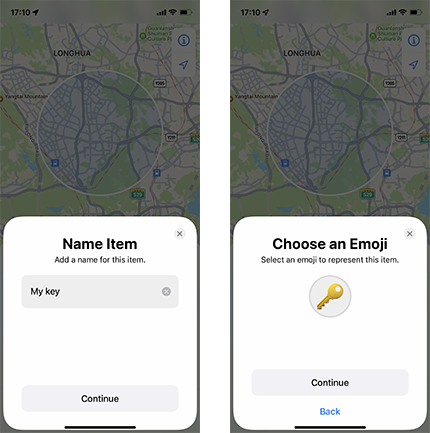
4. Name your item finder and select an emoji to present your item, then tap Continue.
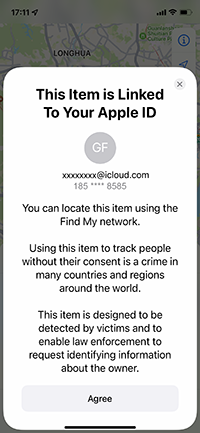
5. Agree this item linked to your Apple ID.
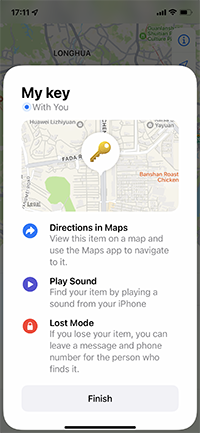
6. Tap Finish.
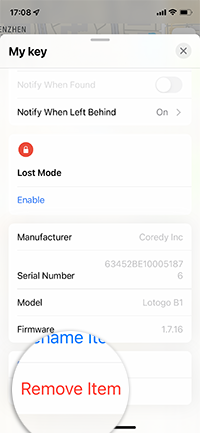
How to remove Coredy Bluetooth tracker?
1. Open Find My app, tap the item from the list.
2. Scroll upwards to bring up the full settings.
3. Tap Remove Item.
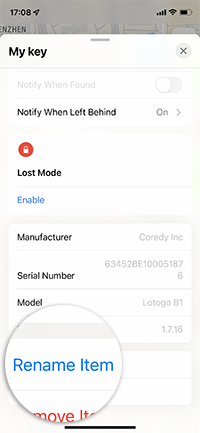
How to rename Coredy Bluetooth tracker?
1. Open Find My app, tap the item from the list.
2. Scroll upwards to bring up the full settings.
3. Tap Rename Item.
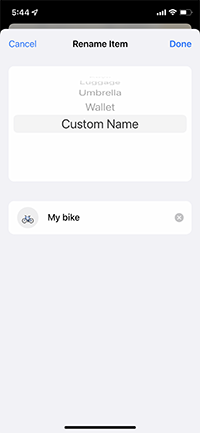
4. Give your item a custom name and select an emoji to present it, then tap Done.
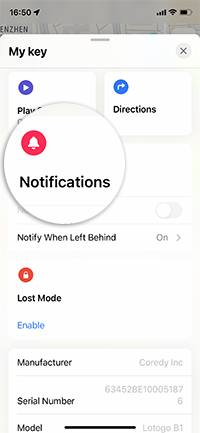
How to enable "Notifications" ?
1. Open Find My app, tap the item from the list.
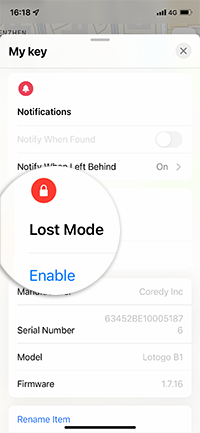
2. Scroll upwards to bring up the full settings.
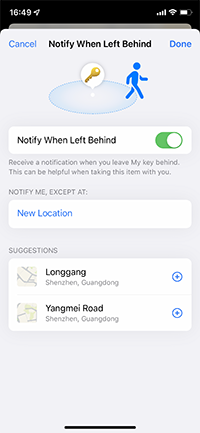
3. Enable Notify When Found under Notifications. (This feature can only be activated when your item tracker is beyond the range of your device.)
4. Enable Notify When Left Behind under Notifications. (This feature is enabled by default.)
How to enable "Lost Mode" ?
1. Open Find My app, tap the item that you want to mark as lost.
2. Scroll upwards to bring up the full settings.
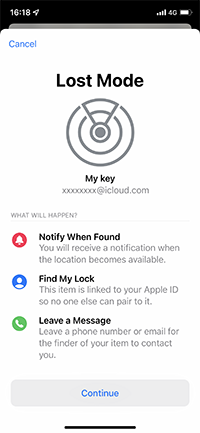
3. Tap Enable under Lost Mode.
4. Enter your contact information, then tap Next.
5. Tap Activate to enable Lost Mode.
6. Tap "Turn off Lost Mode" to remove your contact information and message and disable Lost Mode.